
Record your lesson. Keep your script to yourself.
NoteM records the page you teach on, with your voice and your face, while the script line and the lesson pad stay on your screen only. No second app, no editing afterwards.
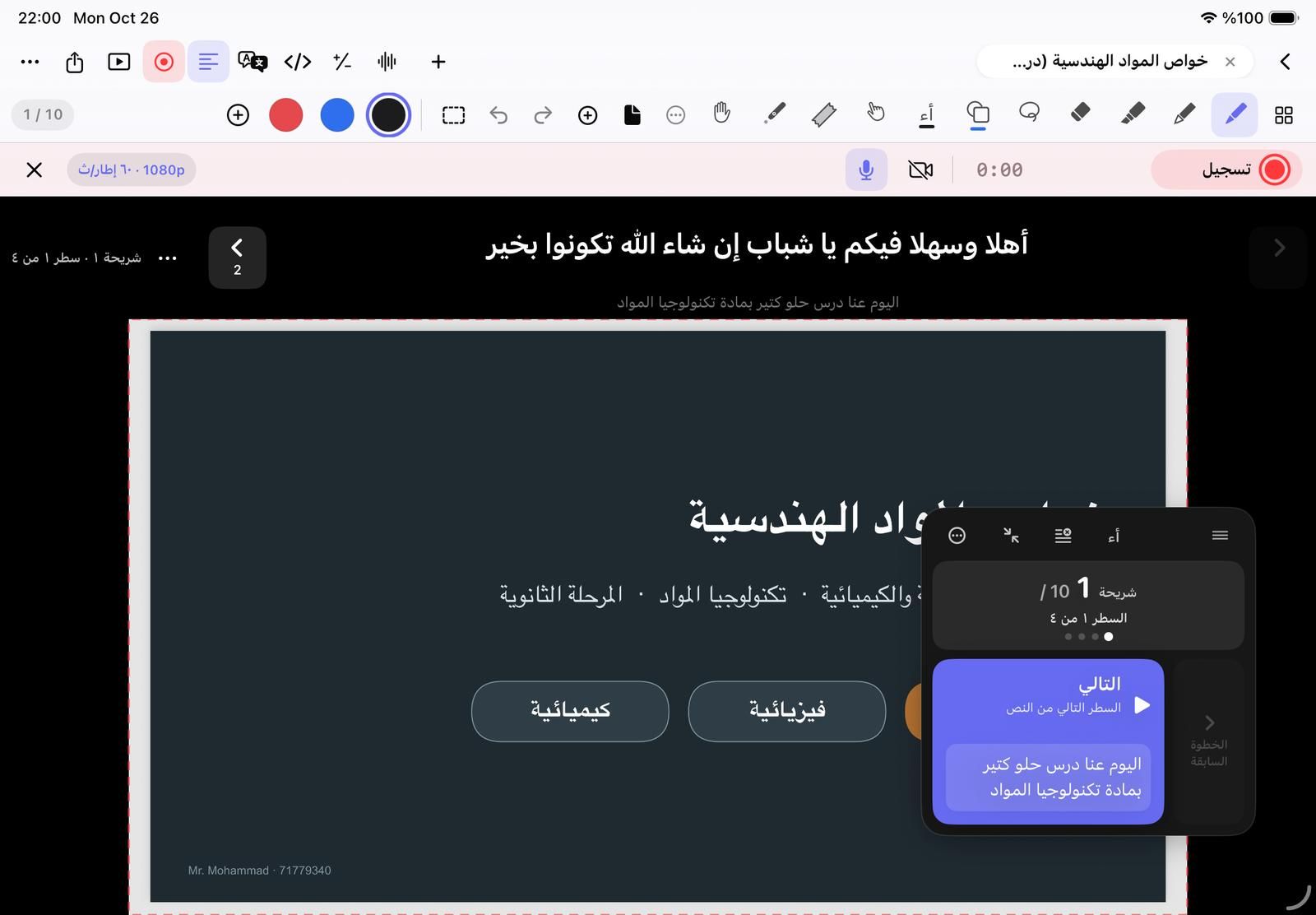

What goes into the video, and what stays out
In the video
- The page and everything on it
- Your handwriting as you write
- Your voice from the microphone
- The camera bubble with your face
- The laser pointer
Only on your screen
- The teleprompter line
- The lesson pad and its Next button
- The countdown before recording
- The toolbars and the studio bar
How to record a lesson
Open the studio
In any notebook, tap Record (the red circle) in the top bar. A dashed red frame shows exactly what will be recorded.
Pick the format
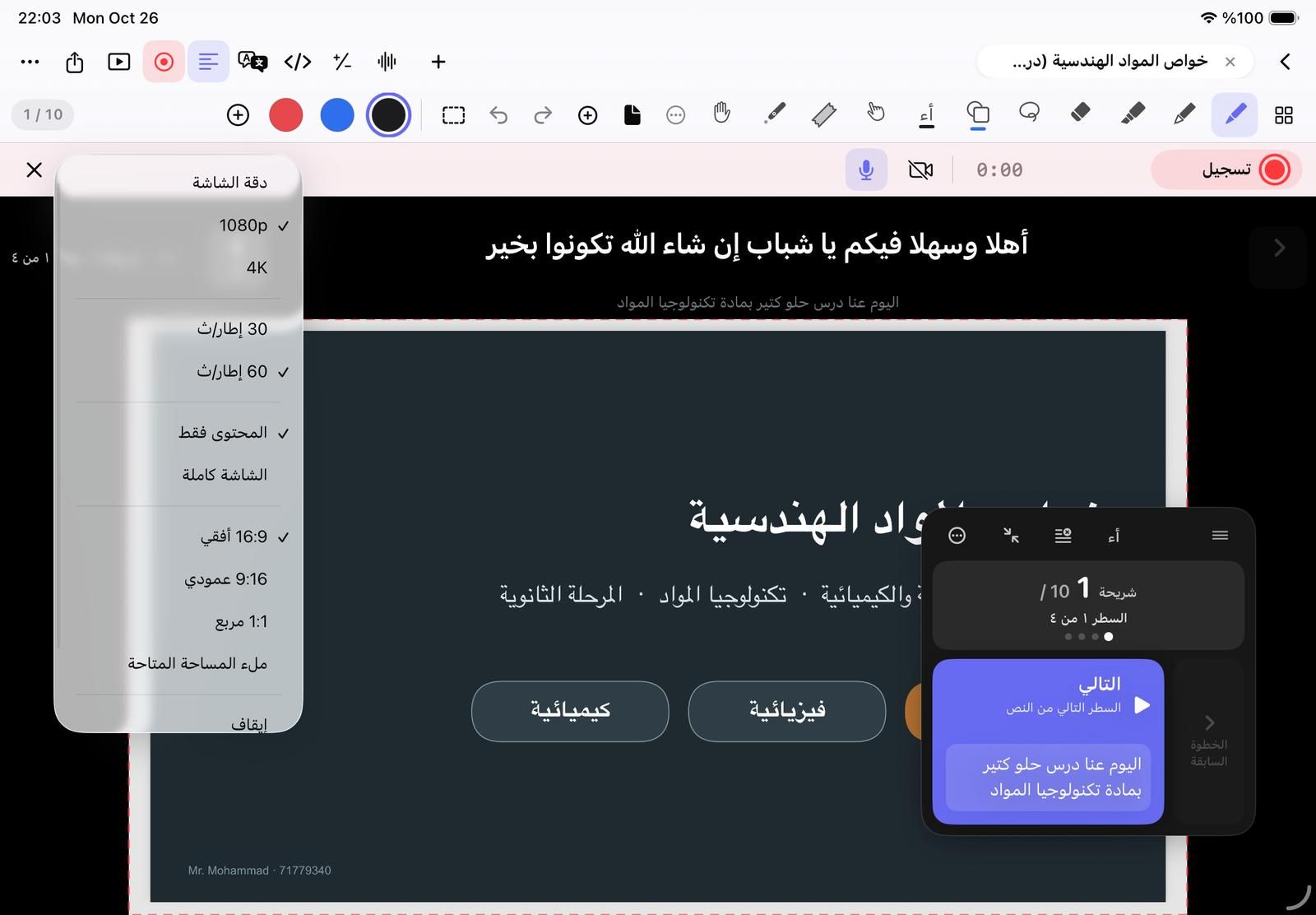
In the quality menu choose 1080p or 4K, 30 or 60 fps, and the video shape: 16:9 landscape, 9:16 vertical or 1:1 square.
Turn on the camera if you want
Tap Camera to put your face in a bubble over the page. Choose a circle or a rectangle, blur the background, or use a green screen.
Press Record
Allow screen recording the first time. A 3-second countdown appears on your screen only, then recording starts.
Teach, pause, stop
Tap Next on the lesson pad to move through your script. Pause and resume as often as you need, then tap Stop: the lesson is saved in Recordings.
Quality and shape
| Resolution | Screen native, 1080p or 4K |
|---|---|
| Frame rate | 30 or 60 fps |
| What is recorded | Content only (the page) or the whole screen under your tools |
| Video shape | 16:9 landscape, 9:16 vertical, 1:1 square or the space available |
| Countdown | Off, 3 or 5 seconds |
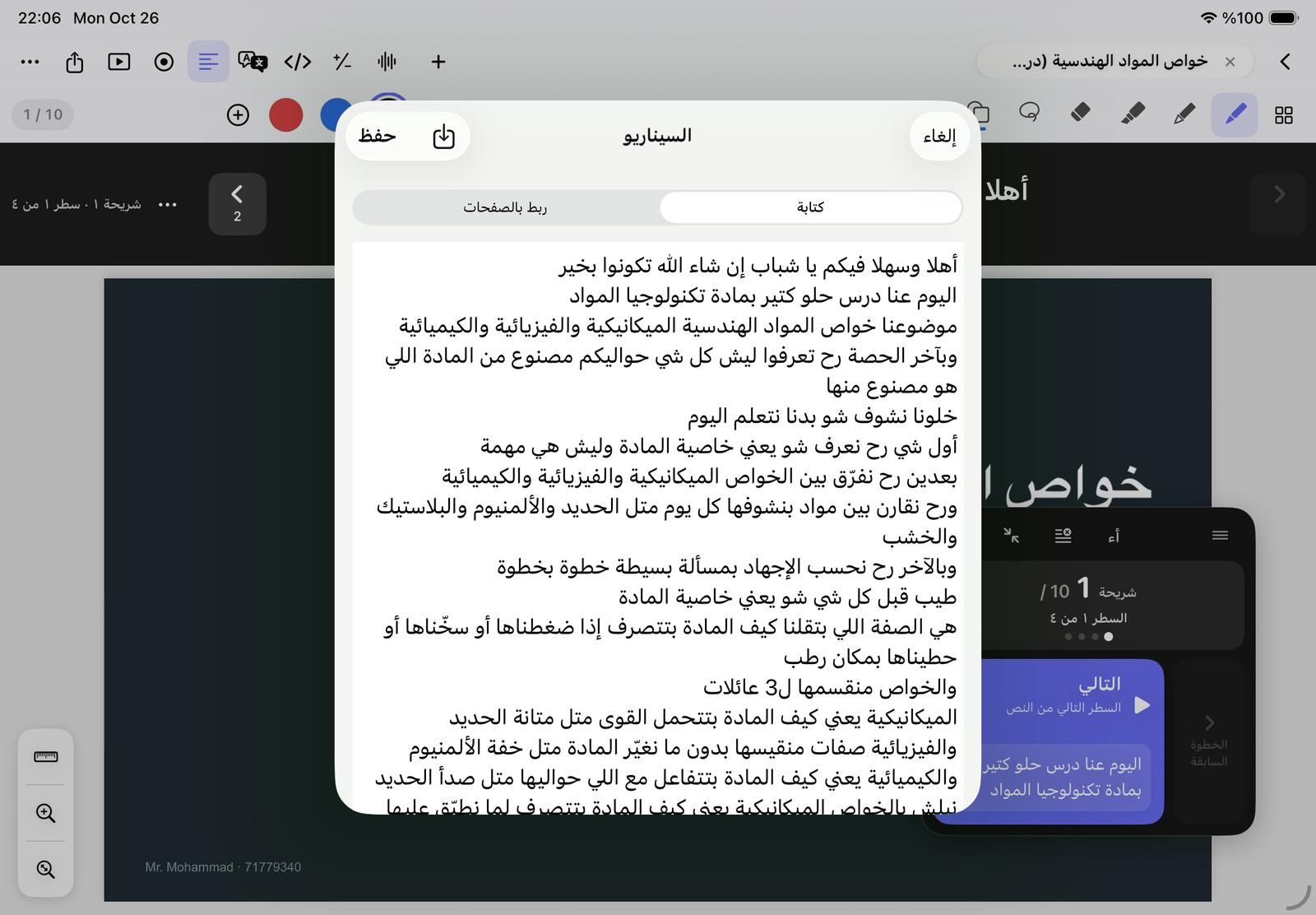
A teleprompter that turns the slides for you
Write your script in the notebook, one line per thing you say. Put [slide 3] before the lines for slide 3 and [click] before a line said with the next animation: when you reach that line, NoteM turns to the slide and reveals the point.
A script linked to slide 4: the last line reveals the slide’s first animation.
- Strip above the page, or captions below it
- Step by step, or scrolling at your speed
- Rewrite the script with AI: easier to say, shorter, livelier
- Import a script from a text, Word or PDF file
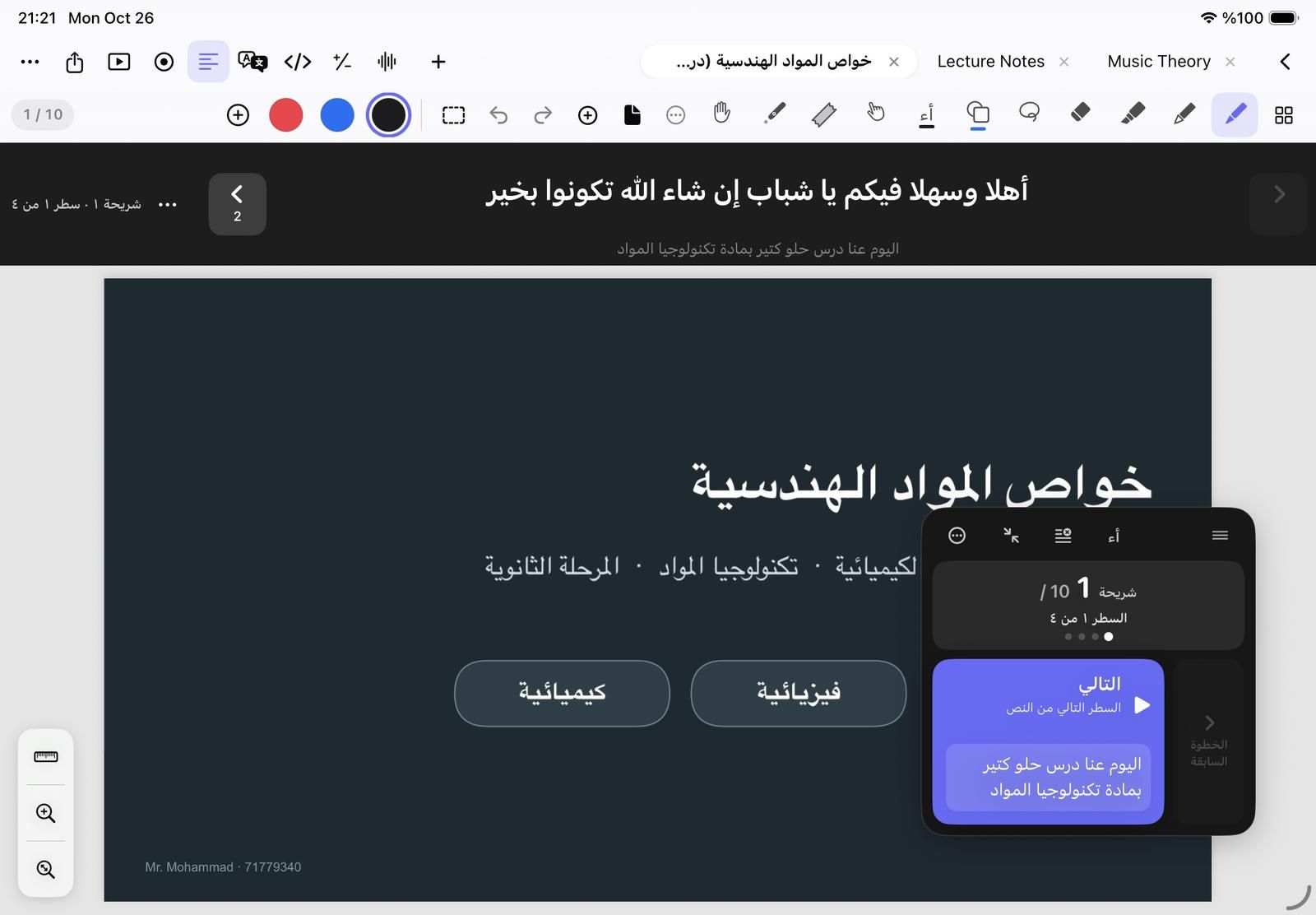
The lesson pad keeps you on track
A small dark pad floats over the page with one big Next button. Each tap shows the next line, reveals the next point or turns the slide, and the counter tells you where you are: slide 1 of 10, line 1 of 4. It never shows in the video.
After you stop
Saved in Recordings
Each lesson is an MP4 in the library’s Recordings, linked to its notebook. Turn on Save to Photos to keep a copy there too.
Captions
Add captions from the lesson’s speech in Arabic, English, French, Turkish, German or Spanish: a captioned video and an SRT file for YouTube.
Title and chapters
Let AI write a title and chapter marks from what you said. Only the words are sent, never the video.
Your brand
With Pro, put your name or your school’s logo on every video, in the corner you choose.
On the free plan
Free recordings are in HD and carry a small “Made with NoteM” watermark, up to 200 minutes in all. NoteM Pro records in 4K without the watermark. See the plans
Questions about recording
Does the teleprompter appear in my recorded video?
No. The script line, the lesson pad and the countdown are visible to you only. The video holds the page, your writing, your voice and the camera bubble.
Can I record a vertical video for Reels or TikTok?
Yes. Choose 9:16 Vertical in the quality menu: the page becomes a vertical frame and the video comes out 1080×1920.
What happens if I pause?
The paused time is left out of the file, so the finished video plays without a gap.
Can I mute the microphone for a moment?
Yes. While recording, tap the microphone to drop the sound and tap it again to bring it back. The picture keeps recording.
Can I record myself full screen with the camera?
Yes. Tap Camera full screen during a lesson, or use the Teleprompter studio in the library to record your face with the script scrolling near the lens.