
Create a notebook
Make a new notebook with its own cover, paper and page size.
Every lesson, class or subject lives in a notebook. You choose how it looks when you create it.
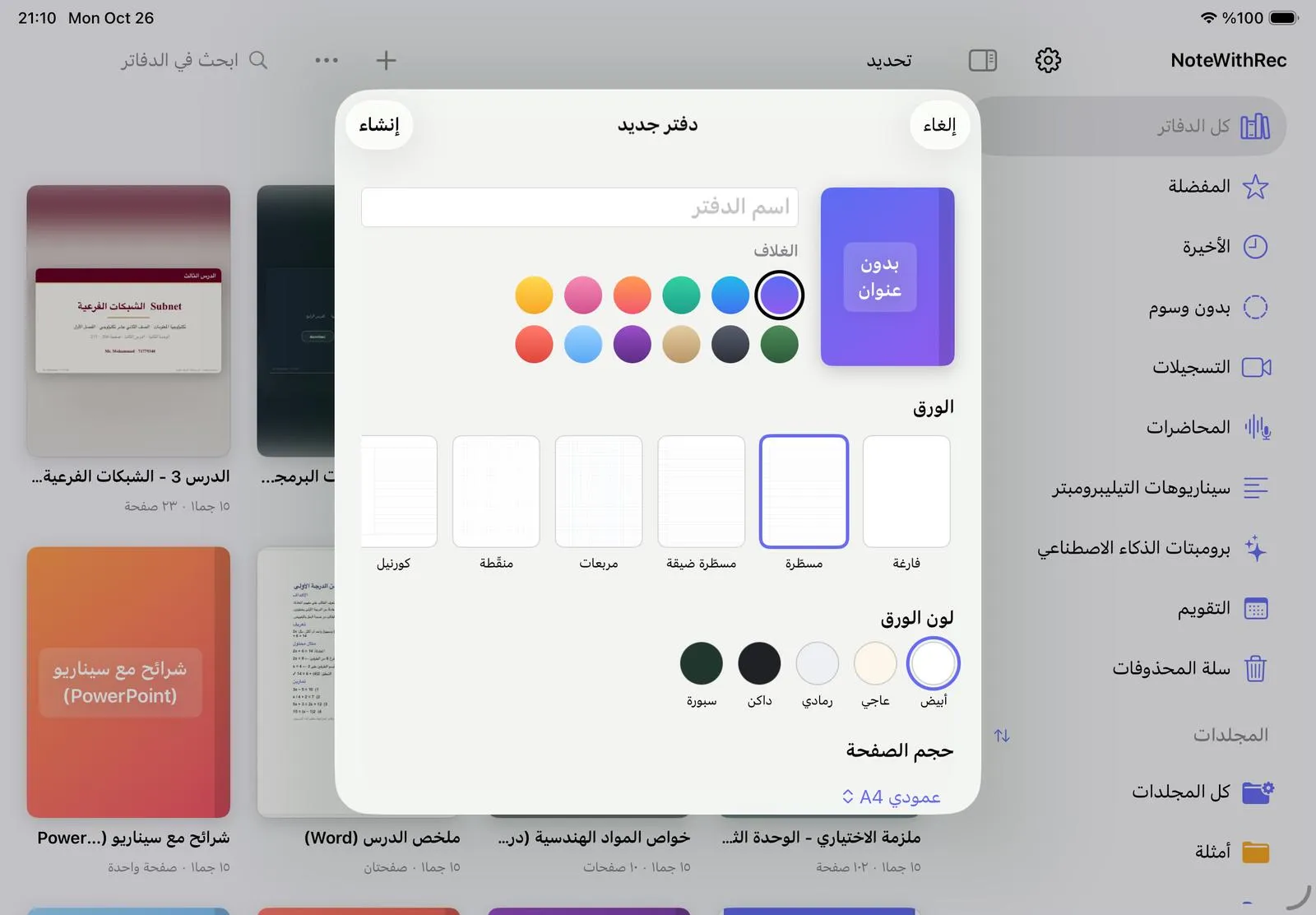
- In the library, tap + at the top and choose New notebook.
- Type a title. If you leave it empty, the notebook is called “Untitled”.
- Pick one of the 12 covers.
- Pick the paper: Blank, Lined, Narrow lined, Grid, Dotted, Cornell or Music.
- Pick the paper colour (White, Ivory, Gray, Dark or Chalkboard) and the page size, such as A4 Portrait or Slide 16:9.
- Tap Create. The notebook opens, ready to write on.
Need a page right now? Choose Quick note from the same + menu: NoteM creates and opens a blank notebook straight away. With a keyboard attached, ⌘N opens the New notebook window.
The notebook is created inside the folder you have open. You can change its name, cover or folder later by pressing and holding its cover.
Was this article helpful?
Thanks for telling us.