
Record a lesson
Record your page, your voice and your face in a few taps.
NoteM records the page you teach on, with your voice and, if you like, your face. The script and the lesson pad stay on your screen only.
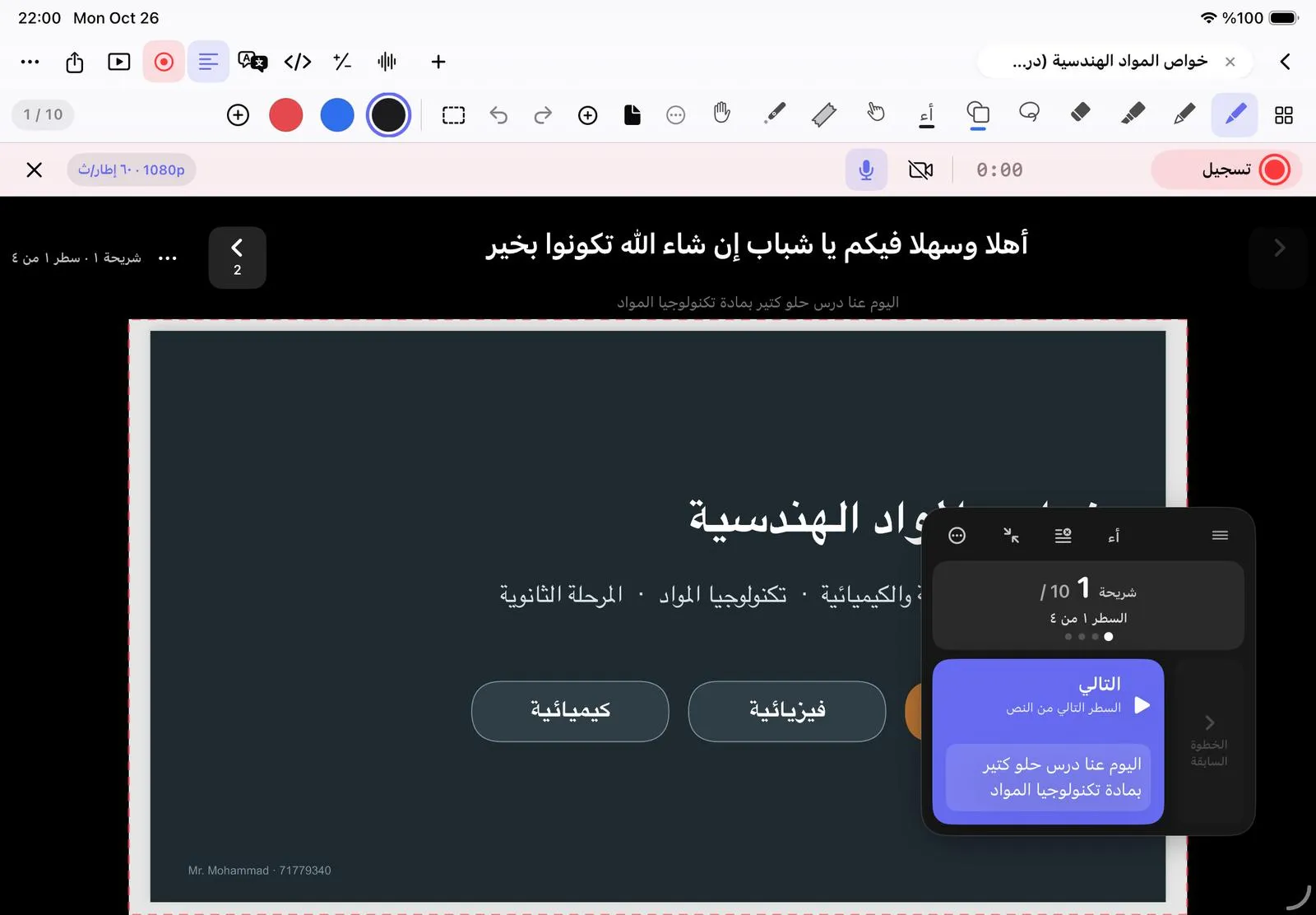
- Open a notebook and tap Record (the red circle) in the top bar. A dashed red frame shows exactly what will be recorded.
- Check the microphone is on, and turn on Camera if you want your face in the video.
- Tap Record. The first time, allow screen recording when iPadOS asks.
- A 3-second countdown appears on your screen only, then recording starts and the timer turns red.
- Tap Pause whenever you need. Tap Resume to carry on in the same video, with no gap.
- Tap Stop. The lesson is saved in Recordings in the library.
With a keyboard: ⇧⌘R starts and pauses, ⌘. stops.
While recording, tap the microphone to mute your voice for a moment, and tap it again to bring it back. The picture keeps recording.
Was this article helpful?
Thanks for telling us.