
Write your script and link it to your slides
Let the teleprompter turn the slides and reveal each point as you speak.
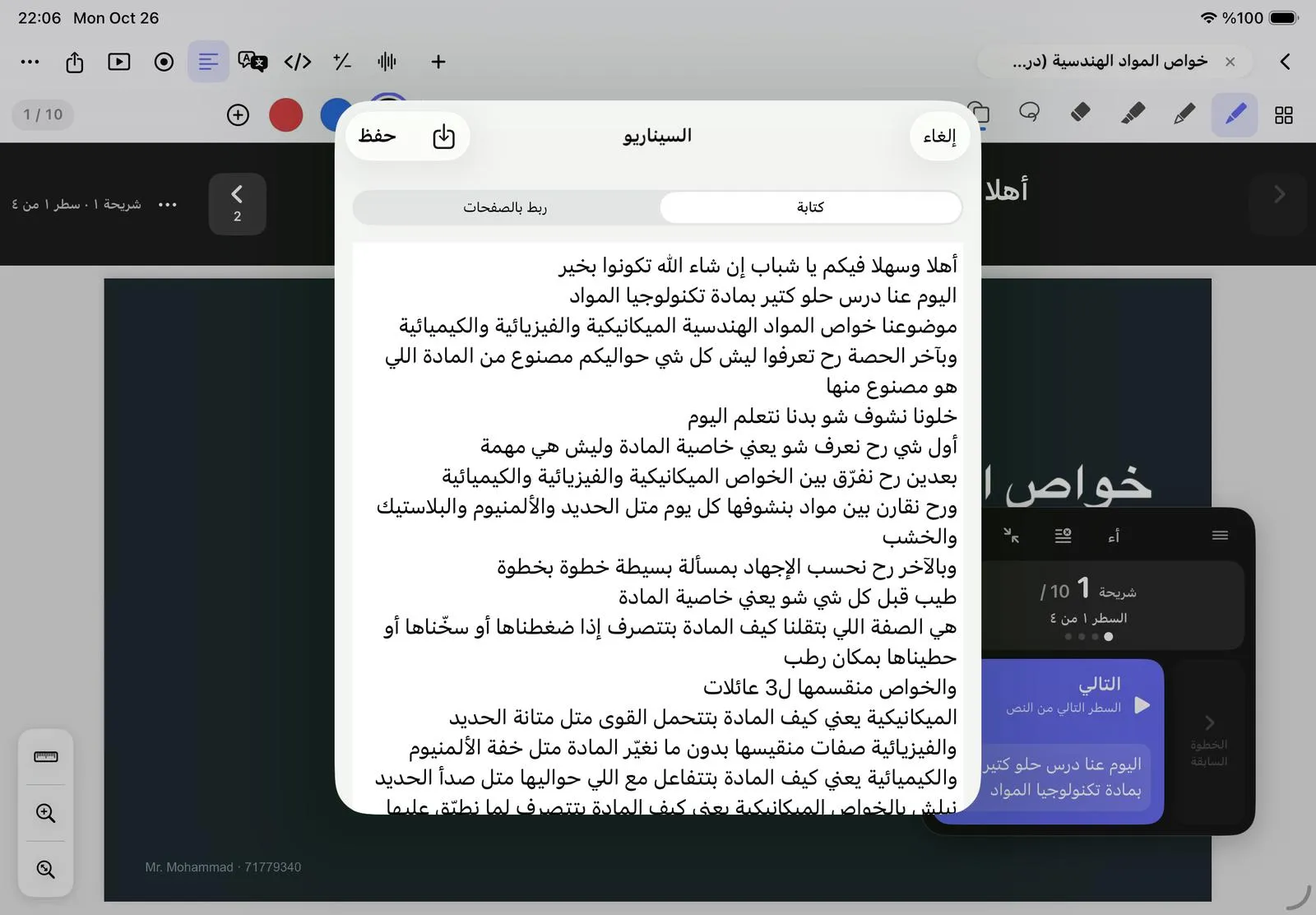
- Open the notebook and tap Teleprompter in the top bar, then Add your script (or Edit script if it already has one).
- In Write, type what you will say, one line per sentence. Every line is one step of the teleprompter.
- Put [slide 3] on its own line before the lines for slide 3.
- Put [click] before a line you say with the slide’s next animation.
- Tap Save.
Now each tap on Next in the lesson pad shows your next line, and when a line belongs to another slide or a click, NoteM turns the page or reveals the point for you.
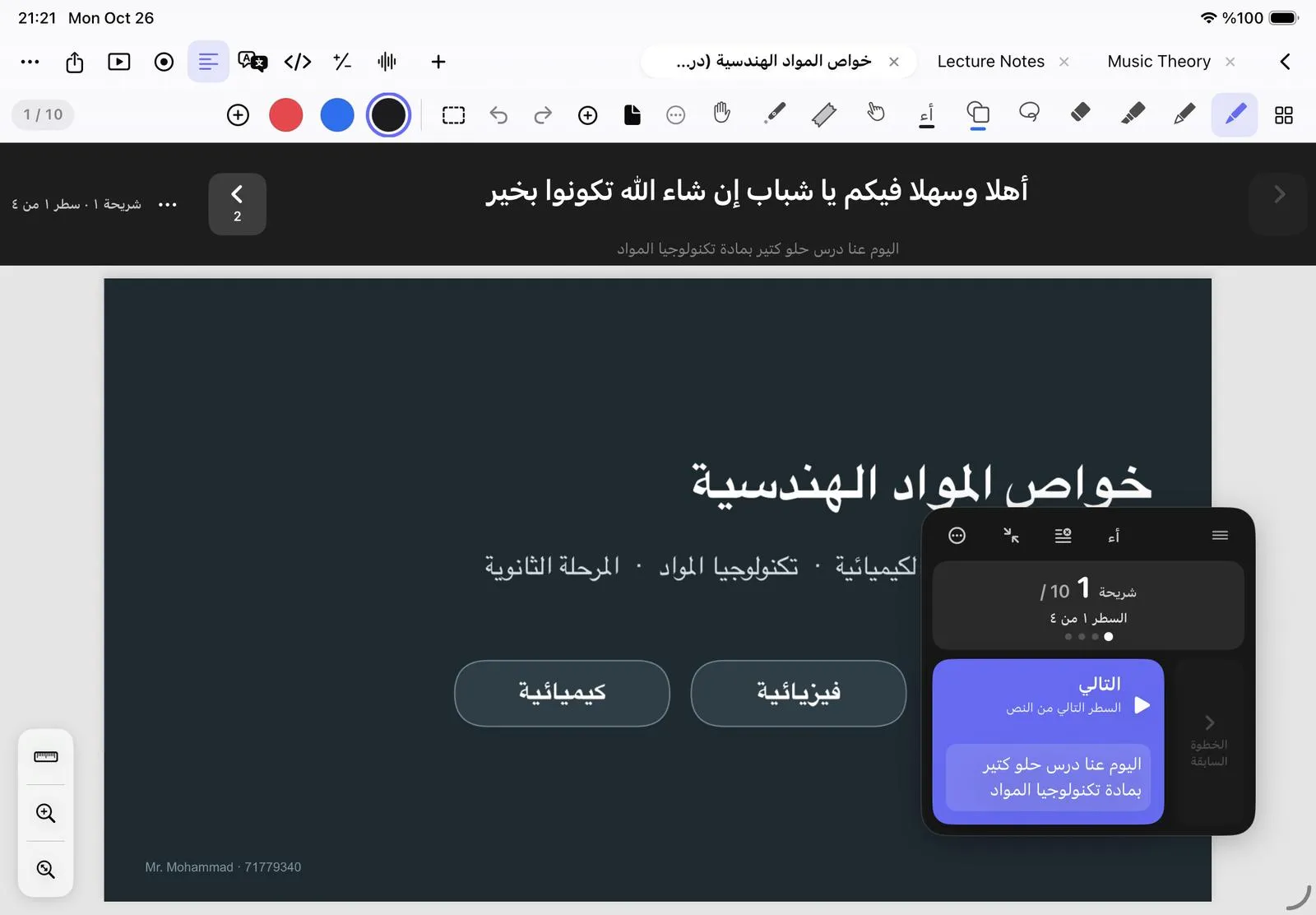
- Link to pages lets you set the page and step for each line by hand instead.
- Import brings a script in from a text, Word or PDF file.
- Rewrite with AI makes the script easier to say, shorter, livelier or more formal, keeping every line linked.
The script line and the lesson pad never appear in your video.
Was this article helpful?
Thanks for telling us.